
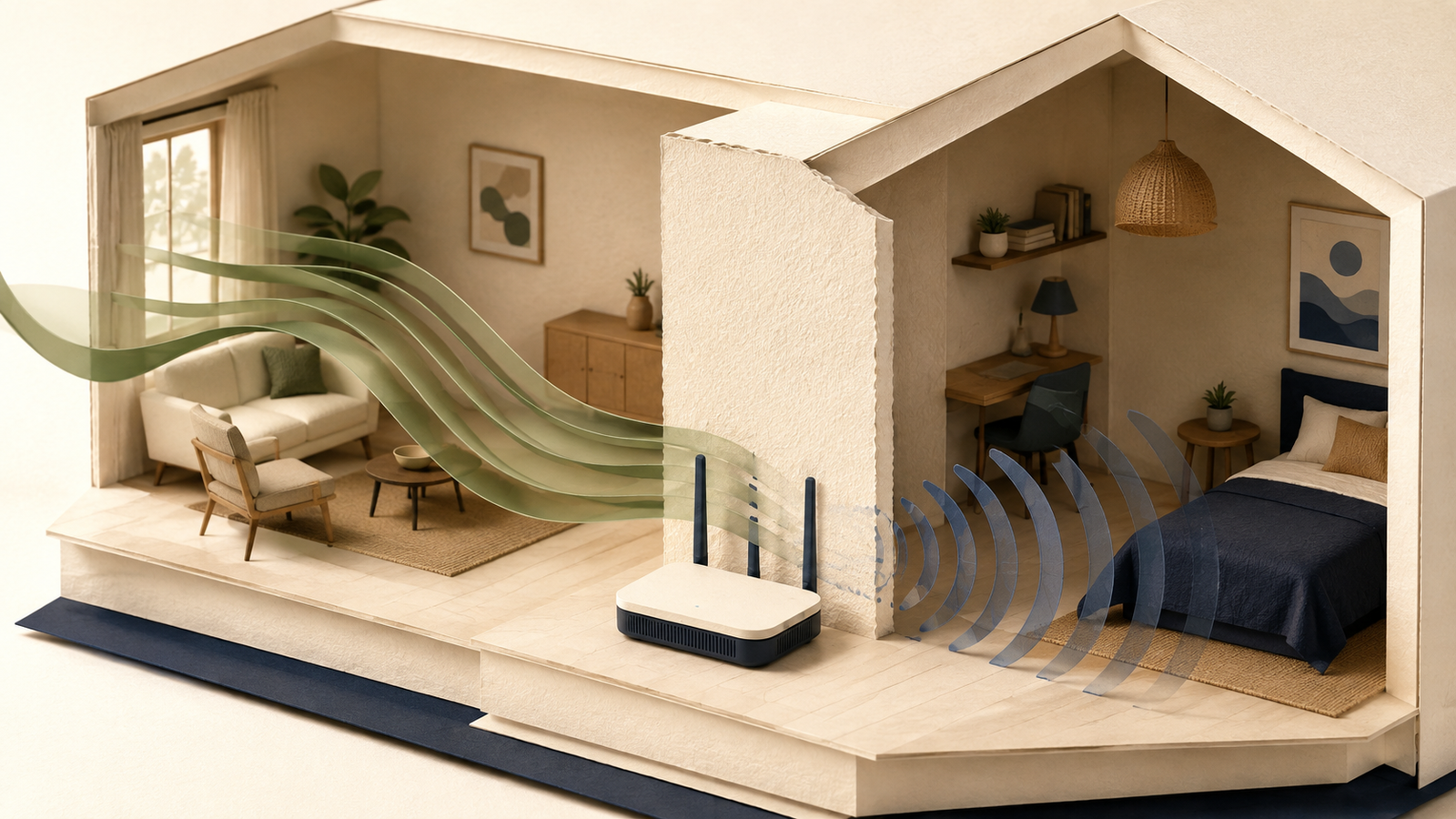
The right Wi-Fi band depends on where a device is, how much data it needs and how crowded your home network is—not simply which number is higher.
Last reviewed: August 23, 2026. Router features, device support and wireless standards can change, so check the specifications for your own equipment.
Use 5 GHz when you want higher speed and the device is fairly close to the router. Use 2.4 GHz when range, wall penetration or compatibility matters more. Neither band is always better: a strong 2.4 GHz connection can be more useful than a weak 5 GHz connection, while a nearby device may get much better performance on 5 GHz.
2.4 GHz is usually best for
Longer reach, devices across more walls, older equipment and many basic smart-home devices.
5 GHz is usually best for
Higher-speed activity near the router, such as streaming, downloads, video calls and gaming.
Choose by location
The same phone or laptop may work better on a different band when you move to another room.
If both are weak
Improve router placement or consider Ethernet, a mesh system or an additional access point.
What are 2.4 GHz and 5 GHz Wi-Fi?
2.4 GHz and 5 GHz are two radio-frequency bands that a Wi-Fi router can use to connect devices. The “GHz” number describes the frequency of the wireless signal. It does not describe your internet plan, your mobile phone network or the Wi-Fi generation by itself.
That distinction matters because three names are often mixed together:
- 2.4 GHz and 5 GHz: the wireless bands used by the local Wi-Fi connection;
- 5G: a mobile-network technology, not the same thing as 5 GHz Wi-Fi;
- Wi-Fi 5 and Wi-Fi 6: generations of Wi-Fi technology, identified by standards such as 802.11ac and 802.11ax.
For example, Wi-Fi 5 is mainly associated with the 5 GHz band, while Wi-Fi 6 can operate on both 2.4 GHz and 5 GHz. The band tells you where the signal operates; the Wi-Fi generation tells you more about how the connection handles data, devices and network efficiency. A newer Wi-Fi label does not remove the practical limits of distance and walls.
2.4 GHz vs 5 GHz at a glance
The simplest difference is a trade-off between coverage and performance. The table below describes common real-world behavior, not a guaranteed result for every router, room or device.
| Factor | 2.4 GHz | 5 GHz |
|---|---|---|
| Typical range | Usually reaches farther from the router. | Usually has a shorter useful range. |
| Walls and obstacles | Often holds up better through walls and floors. | Usually loses strength more quickly through obstacles. |
| Typical speed | Often lower, especially when the band is crowded. | Often higher when the device is close enough to the router. |
| Interference | More likely to be crowded by nearby networks and other household devices. | Often has more room to operate, but can still be congested. |
| Common fit | Distant rooms, basic devices and many smart-home products. | Phones, laptops, TVs, downloads and other high-bandwidth activity. |
| Main trade-off | Better reach, but potentially more congestion and lower throughput. | Better performance nearby, but less forgiving of distance and walls. |
Why does 2.4 GHz usually reach farther?
Lower-frequency radio signals generally travel farther and pass through common building materials more effectively than higher-frequency signals. That is why a device in a distant bedroom may still see a usable 2.4 GHz network after the 5 GHz connection has become weak.
That advantage does not mean 2.4 GHz will always work through every wall. Concrete, metal, insulation, mirrors, appliances and the layout of a building can all change the result. A router placed behind furniture or in a cupboard may perform poorly on both bands.
2.4 GHz also tends to be busier. Many older routers, Bluetooth devices, wireless peripherals and other household equipment use this part of the spectrum. Nearby networks in an apartment building can add even more competition. When a band is crowded, a device may remain connected while feeling slow or inconsistent.
Why is 5 GHz usually faster?
5 GHz Wi-Fi often supports higher real-world throughput because it can offer wider channels and is commonly less crowded than 2.4 GHz. A nearby laptop may therefore download files, stream high-quality video or complete a speed test much faster on 5 GHz.
Its weakness is coverage. The signal usually loses useful strength sooner as it travels through walls and across rooms. A 5 GHz network can look excellent beside the router and then become unreliable at the far end of a home.
“Faster” also depends on the whole connection. The router, client device, Wi-Fi generation, channel width, signal quality, local interference and internet service all matter. If your internet plan is slow, changing from 2.4 GHz to 5 GHz will not create extra bandwidth from your provider. If the 5 GHz signal is weak, its theoretical advantage may disappear.

Which band is best for common activities?
Choose the band based on the combination of activity, location and reliability. The device that needs the most speed is not always the device that should use 5 GHz if it is several walls away.
| Situation | Good starting point | Why |
|---|---|---|
| 4K streaming near the router | 5 GHz | Higher throughput can leave more room for high-quality streaming. |
| Laptop used in the same room | 5 GHz | Short distance makes the speed advantage easier to use. |
| Video call through one wall | Test 5 GHz first | Switch to 2.4 GHz if the higher band is unstable where you sit. |
| Smart plug or basic sensor | 2.4 GHz, if supported | Longer reach and broad compatibility are often more useful than high speed. |
| Gaming close to the router | 5 GHz or Ethernet | 5 GHz may reduce local congestion; Ethernet is usually the most consistent option. |
| Device in a distant room | 2.4 GHz or a mesh access point | A stronger connection is more valuable than a faster band that keeps dropping out. |
| Crowded apartment building | Try 5 GHz first | It may have less local competition, but test the actual room rather than assuming. |
These are starting points, not fixed rules. If a device works reliably and gives you enough speed, there is no benefit in changing bands simply because one number sounds better.
Which band is best for smart-home devices?
Many smart plugs, sensors, bulbs, cameras and appliances are designed to use 2.4 GHz Wi-Fi. The band has longer reach and is supported by a wide range of inexpensive, low-power products. Some devices also use 2.4 GHz because their connection needs are modest: a sensor does not need the same throughput as a streaming box.
Always check the device’s setup requirements. A product that supports 2.4 GHz only may fail during setup if your router combines both bands under one name and the phone app does not handle the hand-off well. Temporarily separating the network names can make setup easier, but the exact steps depend on the router.
Smart cameras are a useful exception to the “smart home means 2.4 GHz” shortcut. A camera may benefit from 5 GHz if it is close to the router and sends high-quality video, while a distant camera may be more reliable on 2.4 GHz. Check the camera’s supported bands and test the signal at its final mounting location.
Should both bands use the same Wi-Fi name?
Many modern routers let 2.4 GHz and 5 GHz share one network name, or SSID. The router then tries to guide each device to a suitable band. This is usually the simplest setup for an ordinary home because you do not need to decide manually every time you move around.
Separate names can be useful when you need more control. They make it easier to see which band a device is using, troubleshoot a weak connection or connect a 2.4 GHz-only smart-home product during setup.
Same name for both bands
- One network to remember
- Less manual switching
- Good default for most households
Separate names
- Easier band-by-band testing
- More control for smart-home setup
- More networks and passwords to manage
There is no universal requirement to split the bands. Start with the router’s default combined setup unless a device, coverage problem or troubleshooting step gives you a reason to separate them.
How should you choose in a real home?
The most useful comparison is a short test in the place where the device will actually be used. Do not judge the band only beside the router.
- Start with the location. Note how many walls, floors and large obstacles sit between the device and router.
- Try 5 GHz for speed-sensitive devices. Use it first for a nearby laptop, television, console or phone.
- Check stability, not only speed. A speed test can look impressive even when a connection drops during a real video call or game.
- Try 2.4 GHz when distance is the problem. It may give a more dependable connection in a far room or behind several obstacles.
- Use the device’s requirements. If a smart-home product supports only one band, that requirement settles the choice.
- Improve the layout if both bands struggle. Move the router into an open, central position before buying new equipment.
When neither band fixes the problem
Changing bands cannot solve every Wi-Fi problem. If both connections are poor, check the wider network before assuming the frequency is at fault.
Check these first
- Router position, height and ventilation;
- Distance, walls, floors and metal objects;
- Router and device software updates;
- Local network congestion at busy times;
- Whether the internet service itself is slow;
- Whether the device’s Wi-Fi hardware is outdated.
Consider a different solution
- Ethernet for a fixed, high-demand device;
- A mesh system for a larger home;
- A wired access point for a distant room;
- A newer router when the current one is failing;
- A better location before adding more equipment.
A mesh system or additional access point can improve coverage because it changes where the network is delivered. It does not make 5 GHz travel through an unlimited number of walls, and it does not automatically fix a slow internet plan.
Common 2.4 GHz and 5 GHz mistakes
Better decisions
- Choose the band by location and activity.
- Test real stability, not only headline speed.
- Check whether each device supports the band.
- Use mesh or Ethernet when the layout needs it.
Common mistakes
- Confusing 5 GHz Wi-Fi with 5G mobile service.
- Assuming Wi-Fi 5 means “the 5 GHz network”.
- Forcing every device onto 5 GHz.
- Choosing 2.4 GHz only because it reaches farther.
- Blaming the band for a slow internet connection.
The bottom line
2.4 GHz and 5 GHz are different tools for different parts of a home. 2.4 GHz usually prioritises reach and obstacle handling. 5 GHz usually prioritises speed and capacity over shorter distances.
Use 5 GHz when a device is near enough to the router and needs more throughput. Use 2.4 GHz when range, walls or compatibility matter more. If neither connection is dependable, improve the network’s placement or design instead of trying to force the wrong band to do everything.
Pick the fastest band that remains stable in the device’s real location. For many homes, that means 5 GHz nearby, 2.4 GHz farther away, and a mesh or wired connection when the home is too large for one router.
Frequently asked questions
Is 5 GHz better than 2.4 GHz?
Not in every situation. 5 GHz is usually faster near the router, while 2.4 GHz usually reaches farther and handles obstacles better. Choose the band that is stable enough for the device’s location and activity.
Is 2.4 GHz Wi-Fi slower?
It often has lower real-world throughput, but the result depends on the router, device, channel conditions and signal strength. A strong 2.4 GHz connection can be more useful than a weak 5 GHz connection.
Does 5 GHz Wi-Fi go through walls?
Yes, but it usually loses strength more quickly through walls and floors than 2.4 GHz. Building materials and router placement can change the result, so test the actual room rather than relying only on the band name.
Should every device use 5 GHz?
No. Use 5 GHz for nearby devices that need more speed, and use 2.4 GHz for distant or 2.4 GHz-only devices when it provides a more reliable connection.
Why can’t my smart plug see my Wi-Fi?
Some smart plugs support 2.4 GHz only. Check the product requirements, confirm that the router is offering a compatible 2.4 GHz network and follow the manufacturer’s setup instructions. Separating the band names temporarily may help with setup.
Will switching to 5 GHz make my internet plan faster?
It may improve the wireless link between a nearby device and router, but it does not increase the speed supplied by your internet provider. The router, device, signal quality and local interference all affect the result.
Should 2.4 GHz and 5 GHz have the same Wi-Fi name?
Using one name is a simple default because the router can manage the bands for you. Separate names are useful when you need to troubleshoot, test each band or set up a device with a specific band requirement.